


Page 37 - Computing Book 4
P. 37
Let’s Present                                                                        Class 4


               Duplicate slides:

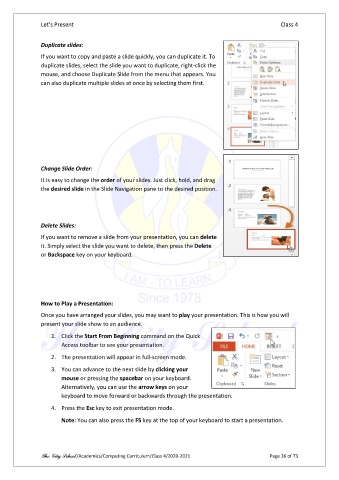
               If you want to copy and paste a slide quickly, you can duplicate it. To
               duplicate slides, select the slide you want to duplicate, right-click the
               mouse, and choose Duplicate Slide from the menu that appears. You
               can also duplicate multiple slides at once by selecting them first.


               Change Slide Order:

               It is easy to change the order of your slides. Just click, hold, and drag
               the desired slide in the Slide Navigation pane to the desired position.


               Delete Slides:
               If you want to remove a slide from your presentation, you can delete
               it. Simply select the slide you want to delete, then press the Delete
               or Backspace key on your keyboard.


               How to Play a Presentation:
               Once you have arranged your slides, you may want to play your presentation. This is how you will
               present your slide show to an audience.

                   1.  Click the Start From Beginning command on the Quick
                       Access toolbar to see your presentation.

                   2.  The presentation will appear in full-screen mode.
                   3.  You can advance to the next slide by clicking your
                       mouse or pressing the spacebar on your keyboard.
                       Alternatively, you can use the arrow keys on your
                       keyboard to move forward or backwards through the presentation.

                   4.  Press the Esc key to exit presentation mode.

                       Note: You can also press the F5 key at the top of your keyboard to start a presentation.


               The City School /Academics/Computing Curriculum/Class 4/2020-2021                Page 36 of 73

