


Page 38 - Computing Book 4
P. 38
Spreadsheet Formatting                                                               Class 4


                                              Spreadsheet Formatting


               Apply Autofit Column Width:

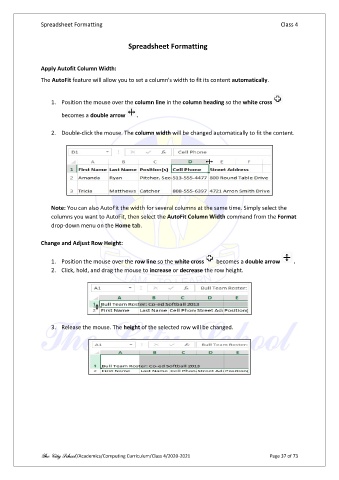
               The AutoFit feature will allow you to set a column's width to fit its content automatically.


                   1.  Position the mouse over the column line in the column heading so the white cross

                       becomes a double arrow    .

                   2.  Double-click the mouse. The column width will be changed automatically to fit the content.


                   Note: You can also AutoFit the width for several columns at the same time. Simply select the
                   columns you want to AutoFit, then select the AutoFit Column Width command from the Format
                   drop-down menu on the Home tab.

               Change and Adjust Row Height:


                   1.  Position the mouse over the row line so the white cross    becomes a double arrow   .
                   2.  Click, hold, and drag the mouse to increase or decrease the row height.


                   3.  Release the mouse. The height of the selected row will be changed.


               The City School /Academics/Computing Curriculum/Class 4/2020-2021                Page 37 of 73

