


Page 39 - Computing Book 4
P. 39
Spreadsheet Formatting                                                               Class 4


               Modify all Rows or Columns:

               Rather than resizing rows and columns individually, you can modify the height and width of every
               row and column at the same time. This method allows you to set a uniform size for every row and
               column in your worksheet. In our example, we will set a uniform row height.

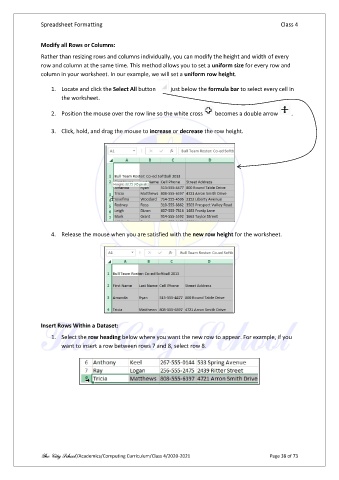
                   1.  Locate and click the Select All button    just below the formula bar to select every cell in
                       the worksheet.

                   2.  Position the mouse over the row line so the white cross    becomes a double arrow   .

                   3.  Click, hold, and drag the mouse to increase or decrease the row height.


                   4.  Release the mouse when you are satisfied with the new row height for the worksheet.


               Insert Rows Within a Dataset:
                   1.  Select the row heading below where you want the new row to appear. For example, if you
                       want to insert a row between rows 7 and 8, select row 8.


               The City School /Academics/Computing Curriculum/Class 4/2020-2021                Page 38 of 73

