


Page 25 - TCS ICT Book 5
P. 25
The City School  2021-2022


           1.7.  Adding Effects


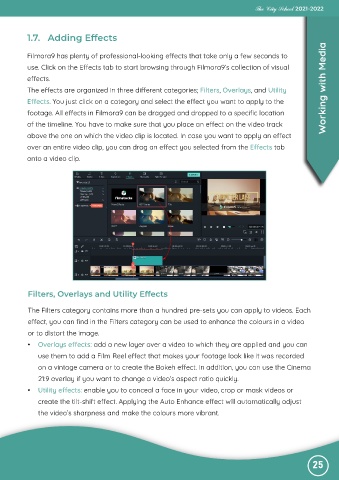
           Filmora9 has plenty of professional-looking effects that take only a few seconds to

           use. Click on the Effects tab to start browsing through Filmora9’s collection of visual
           effects.

           The effects are organized in three different categories; Filters, Overlays, and Utility                 Working with Media
           Effects. You just click on a category and select the effect you want to apply to the

           footage. All effects in Filmora9 can be dragged and dropped to a specific location
           of the timeline. You have to make sure that you place an effect on the video track

           above the one on which the video clip is located. In case you want to apply an effect
           over an entire video clip, you can drag an effect you selected from the Effects tab

           onto a video clip.


           Filters, Overlays and Utility Effects


           The Filters category contains more than a hundred pre-sets you can apply to videos. Each
           effect, you can find in the Filters category can be used to enhance the colours in a video

           or to distort the image.
           •  Overlays effects: add a new layer over a video to which they are applied and you can

              use them to add a Film Reel effect that makes your footage look like it was recorded
              on a vintage camera or to create the Bokeh effect. In addition, you can use the Cinema

              21:9 overlay if you want to change a video’s aspect ratio quickly.
           •  Utility effects: enable you to conceal a face in your video, crop or mask videos or

              create the tilt-shift effect. Applying the Auto Enhance effect will automatically adjust
              the video’s sharpness and make the colours more vibrant.


                                                                                                               25

