


Page 128 - Learn To Program With Scratch
P. 128
The parent sprite in this example owns a variable named cloneID. When
                         the green flag is clicked, it starts a loop to create three clones, and it sets
                         cloneID to a different value (1, 2, or 3 in this case) before creating a clone.
                         Each clone comes to life with its own copy of cloneID initialized to a differ-
                         ent value. You could now use an if block, which we’ll study in depth in the
                         next chapter, to check for the clone’s ID and have it perform a correspond-
                         ing action.
               ClonesAnd     Now, let’s discuss how clones can interact with global variables. Recall
           GlobalVars .sb2  from Figure 5-15 that variables with scope For all sprites can be read and
                         written by the Stage and all sprites, including clones. As an example, the
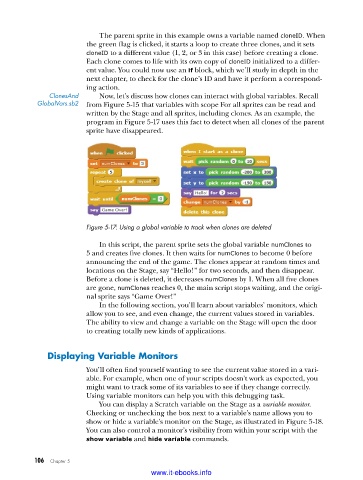
                         program in Figure 5-17 uses this fact to detect when all clones of the parent
                         sprite have disappeared.


                         Figure 5-17: Using a global variable to track when clones are deleted

                             In this script, the parent sprite sets the global variable numClones to
                         5 and creates five clones. It then waits for numClones to become 0 before
                         announcing the end of the game. The clones appear at random times and
                         locations on the Stage, say “Hello!” for two seconds, and then disappear.
                         Before a clone is deleted, it decreases numClones by 1. When all five clones
                         are gone, numClones reaches 0, the main script stops waiting, and the origi-
                         nal sprite says “Game Over!”
                             In the following section, you’ll learn about variables’ monitors, which
                         allow you to see, and even change, the current values stored in variables.
                         The ability to view and change a variable on the Stage will open the door
                         to creating totally new kinds of applications.


              displaying Variable monitors
                         You’ll often find yourself wanting to see the current value stored in a vari-
                         able. For example, when one of your scripts doesn’t work as expected, you
                         might want to track some of its variables to see if they change correctly.
                         Using variable monitors can help you with this debugging task.
                             You can display a Scratch variable on the Stage as a variable monitor.
                         Checking or unchecking the box next to a variable’s name allows you to
                         show or hide a variable’s monitor on the Stage, as illustrated in Figure 5-18.
                         You can also control a monitor’s visibility from within your script with the
                         show variable and hide variable commands.


           106   Chapter 5
                                           www.it-ebooks.info

