


Page 129 - Learn To Program With Scratch
P. 129
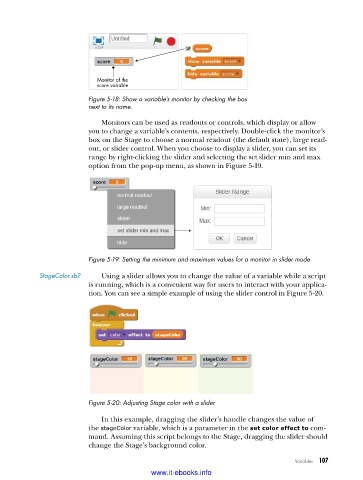
Monitor of the
                            score variable
                          Figure 5-18: Show a variable’s monitor by checking the box
                          next to its name .
                             Monitors can be used as readouts or controls, which display or allow
                          you to change a variable’s contents, respectively. Double-click the monitor’s
                          box on the Stage to choose a normal readout (the default state), large read-
                          out, or slider control. When you choose to display a slider, you can set its
                          range by right-clicking the slider and selecting the set slider min and max
                          option from the pop-up menu, as shown in Figure 5-19.


                          Figure 5-19: Setting the minimum and maximum values for a monitor in slider mode

            StageColor .sb2  Using a slider allows you to change the value of a variable while a script
                          is running, which is a convenient way for users to interact with your applica-
                          tion. You can see a simple example of using the slider control in Figure 5-20.


                          Figure 5-20: Adjusting Stage color with a slider

                             In this example, dragging the slider’s handle changes the value of
                          the stageColor variable, which is a parameter in the set color effect to com-
                          mand. Assuming this script belongs to the Stage, dragging the slider should
                          change the Stage’s background color.

                                                                                   Variables   107

                                           www.it-ebooks.info

