


Page 40 - Learn To Program With Scratch
P. 40
Move to the top
of the Stage.
225° 180° 135°
Pick a random angle
between 135 and 225.
Start moving. Bounce
away if you touch an
edge of the Stage.
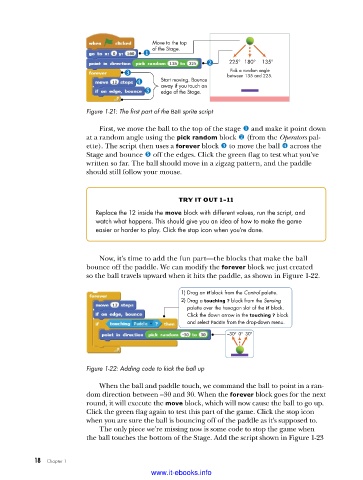
Figure 1-21: The first part of the Ball sprite script
First, we move the ball to the top of the stage u and make it point down
at a random angle using the pick random block v (from the Operators pal-
ette). The script then uses a forever block w to move the ball x across the
Stage and bounce y off the edges. Click the green flag to test what you’ve
written so far. The ball should move in a zigzag pattern, and the paddle
should still follow your mouse.
try it out 1-11
Replace the 12 inside the move block with different values, run the script, and
watch what happens . This should give you an idea of how to make the game
easier or harder to play . Click the stop icon when you’re done .
Now, it’s time to add the fun part—the blocks that make the ball
bounce off the paddle. We can modify the forever block we just created
so the ball travels upward when it hits the paddle, as shown in Figure 1-22.
1) Drag an if block from the Control palette.
2) Drag a touching ? block from the Sensing
palette over the hexagon slot of the if block.
Click the down arrow in the touching ? block
and select Paddle from the drop-down menu.
–30° 0° 30°
Figure 1-22: Adding code to kick the ball up
When the ball and paddle touch, we command the ball to point in a ran-
dom direction between –30 and 30. When the forever block goes for the next
round, it will execute the move block, which will now cause the ball to go up.
Click the green flag again to test this part of the game. Click the stop icon
when you are sure the ball is bouncing off of the paddle as it’s supposed to.
The only piece we’re missing now is some code to stop the game when
the ball touches the bottom of the Stage. Add the script shown in Figure 1-23
18 Chapter 1
www.it-ebooks.info

