


Page 38 - Learn To Program With Scratch
P. 38
Step 1: Prepare the Backdrop
To detect when the ball misses the paddle, we’ll mark the bottom of the
Stage with a certain color and use the touching color ? block (from the
Sensing palette) to tell us when the ball touches that color. Our current
backdrop is white, so we can just draw a thin, colored rectangle at the
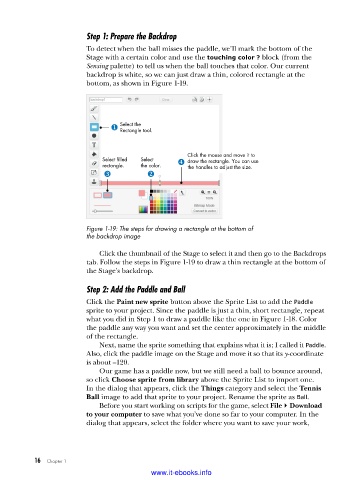
bottom, as shown in Figure 1-19.
Select the
Rectangle tool.
Click the mouse and move it to
Select filled Select draw the rectangle. You can use
rectangle. the color. the handles to adjust the size.
Figure 1-19: The steps for drawing a rectangle at the bottom of
the backdrop image
Click the thumbnail of the Stage to select it and then go to the Backdrops
tab. Follow the steps in Figure 1-19 to draw a thin rectangle at the bottom of
the Stage’s backdrop.
Step 2: Add the Paddle and Ball
Click the Paint new sprite button above the Sprite List to add the Paddle
sprite to your project. Since the paddle is just a thin, short rectangle, repeat
what you did in Step 1 to draw a paddle like the one in Figure 1-18. Color
the paddle any way you want and set the center approximately in the middle
of the rectangle.
Next, name the sprite something that explains what it is; I called it Paddle.
Also, click the paddle image on the Stage and move it so that its y-coordinate
is about –120.
Our game has a paddle now, but we still need a ball to bounce around,
so click Choose sprite from library above the Sprite List to import one.
In the dialog that appears, click the Things category and select the Tennis
Ball image to add that sprite to your project. Rename the sprite as Ball.
Before you start working on scripts for the game, select File4Download
to your computer to save what you’ve done so far to your computer. In the
dialog that appears, select the folder where you want to save your work,
16 Chapter 1
www.it-ebooks.info

