


Page 37 - Learn To Program With Scratch
P. 37
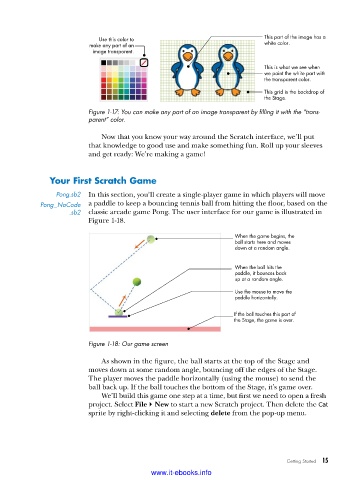
Use this color to                            This part of the image has a
                          make any part of an                             white color.
                           image transparent.

                                                                          This is what we see when
                                                                          we paint the white part with
                                                                          the transparent color.
                                                                          This grid is the backdrop of
                                                                          the Stage.

                          Figure 1-17: You can make any part of an image transparent by filling it with the “trans-
                          parent” color .

                             Now that you know your way around the Scratch interface, we’ll put
                          that knowledge to good use and make something fun. Roll up your sleeves
                          and get ready: We’re making a game!


               Your first Scratch game

                 Pong .sb2  In this section, you’ll create a single-player game in which players will move
            Pong_NoCode   a paddle to keep a bouncing tennis ball from hitting the floor, based on the
                     .sb2  classic arcade game Pong. The user interface for our game is illustrated in
                          Figure 1-18.
                                                                  When the game begins, the
                                                                  ball starts here and moves
                                                                  down at a random angle.


                                                                  When the ball hits the
                                                                  paddle, it bounces back
                                                                  up at a random angle.
                                                                  Use the mouse to move the
                                                                  paddle horizontally.

                                                                  If the ball touches this part of
                                                                  the Stage, the game is over.


                          Figure 1-18: Our game screen

                             As shown in the figure, the ball starts at the top of the Stage and
                          moves down at some random angle, bouncing off the edges of the Stage.
                          The player moves the paddle horizontally (using the mouse) to send the
                          ball back up. If the ball touches the bottom of the Stage, it’s game over.
                             We’ll build this game one step at a time, but first we need to open a fresh
                          project. Select File4New to start a new Scratch project. Then delete the Cat
                          sprite by right-clicking it and selecting delete from the pop-up menu.


                                                                                 Getting Started   15

                                           www.it-ebooks.info

