


Page 36 - Learn To Program With Scratch
P. 36
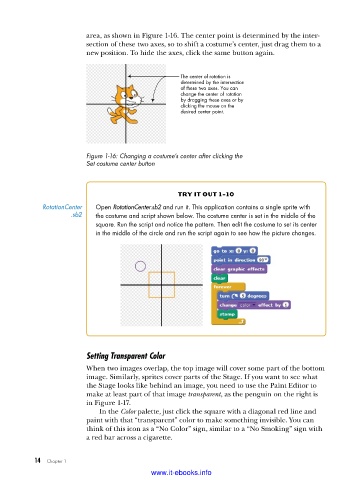
area, as shown in Figure 1-16. The center point is determined by the inter-
                         section of these two axes, so to shift a costume’s center, just drag them to a
                         new position. To hide the axes, click the same button again.


                                                   The center of rotation is
                                                   determined by the intersection
                                                   of these two axes. You can
                                                   change the center of rotation
                                                   by dragging these axes or by
                                                   clicking the mouse on the
                                                   desired center point.


                         Figure 1-16: Changing a costume’s center after clicking the
                         Set costume center button


                                                   try it out 1-10
             RotationCenter   Open RotationCenter.sb2 and run it . This application contains a single sprite with
                      .sb2  the costume and script shown below . The costume center is set in the middle of the
                            square . Run the script and notice the pattern . Then edit the costume to set its center
                            in the middle of the circle and run the script again to see how the picture changes .


                         Setting Transparent Color
                         When two images overlap, the top image will cover some part of the bottom
                         image. Similarly, sprites cover parts of the Stage. If you want to see what
                         the Stage looks like behind an image, you need to use the Paint Editor to
                         make at least part of that image transparent, as the penguin on the right is
                         in Figure 1-17.
                             In the Color palette, just click the square with a diagonal red line and
                         paint with that “transparent” color to make something invisible. You can
                         think of this icon as a “No Color” sign, similar to a “No Smoking” sign with
                         a red bar across a cigarette.


           14   Chapter 1
                                           www.it-ebooks.info

