


Page 79 - Learn To Program With Scratch
P. 79
Dancing on Stage

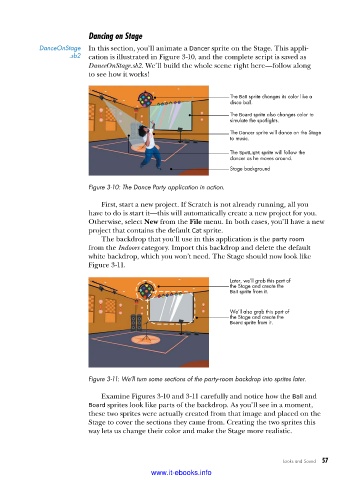
            DanceOnStage   In this section, you’ll animate a Dancer sprite on the Stage. This appli-
                     .sb2  cation is illustrated in Figure 3-10, and the complete script is saved as
                          DanceOnStage.sb2. We’ll build the whole scene right here—follow along
                          to see how it works!


                                                                 The Ball sprite changes its color like a
                                                                 disco ball.
                                                                 The Board sprite also changes color to
                                                                 simulate the spotlights.
                                                                 The Dancer sprite will dance on the Stage
                                                                 to music.

                                                                 The SpotLight sprite will follow the
                                                                 dancer as he moves around.
                                                                 Stage background

                          Figure 3-10: The Dance Party application in action .

                             First, start a new project. If Scratch is not already running, all you
                          have to do is start it—this will automatically create a new project for you.
                          Otherwise, select New from the File menu. In both cases, you’ll have a new
                          project that contains the default Cat sprite.
                             The backdrop that you’ll use in this application is the party room
                          from the Indoors category. Import this backdrop and delete the default
                          white backdrop, which you won’t need. The Stage should now look like
                          Figure 3-11.

                                                                 Later, we’ll grab this part of
                                                                 the Stage and create the
                                                                 Ball sprite from it.


                                                                 We’ll also grab this part of
                                                                 the Stage and create the
                                                                 Board sprite from it.


                          Figure 3-11: We’ll turn some sections of the party-room backdrop into sprites later .

                             Examine Figures 3-10 and 3-11 carefully and notice how the Ball and
                          Board sprites look like parts of the backdrop. As you’ll see in a moment,
                          these two sprites were actually created from that image and placed on the
                          Stage to cover the sections they came from. Creating the two sprites this
                          way lets us change their color and make the Stage more realistic.


                                                                                Looks and Sound   57

                                           www.it-ebooks.info

