


Page 81 - Learn To Program With Scratch
P. 81
Click the Upload sprite from file button (above the Sprite List) and
                          select the image you just saved. This creates a new sprite whose costume is
                          the same as the backdrop image. Name this sprite Ball and edit its costume
                          in the Paint Editor to remove everything but the colorful ball depicted in
                          Figure 3-14 (left). Be sure to paint the space around the ball with transpar-
                          ent color. Next, place the Ball sprite on the Stage exactly over the spot in the
                          backdrop where you took it from so that it looks like part of the image (see
                          Figure 3-11).


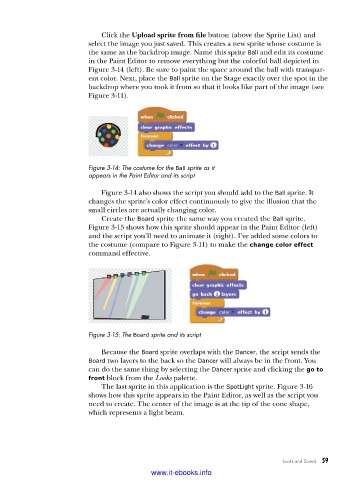
                          Figure 3-14: The costume for the Ball sprite as it
                          appears in the Paint Editor and its script

                             Figure 3-14 also shows the script you should add to the Ball sprite. It
                          changes the sprite’s color effect continuously to give the illusion that the
                          small circles are actually changing color.
                             Create the Board sprite the same way you created the Ball sprite.
                          Figure 3-15 shows how this sprite should appear in the Paint Editor (left)
                          and the script you’ll need to animate it (right). I’ve added some colors to
                          the costume (compare to Figure 3-11) to make the change color effect
                          command effective.


                          Figure 3-15: The Board sprite and its script

                             Because the Board sprite overlaps with the Dancer, the script sends the
                          Board two layers to the back so the Dancer will always be in the front. You
                          can do the same thing by selecting the Dancer sprite and clicking the go to
                          front block from the Looks palette.
                             The last sprite in this application is the SpotLight sprite. Figure 3-16
                          shows how this sprite appears in the Paint Editor, as well as the script you
                          need to create. The center of the image is at the tip of the cone shape,
                          which represents a light beam.


                                                                                Looks and Sound   59

                                           www.it-ebooks.info

