


Page 80 - Learn To Program With Scratch
P. 80
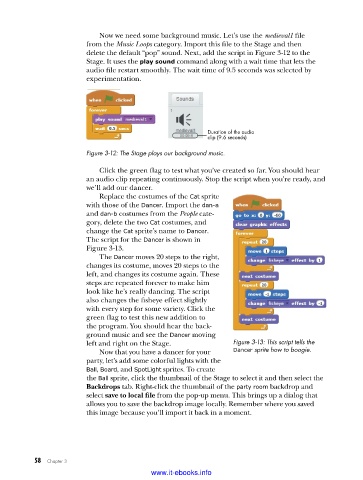
Now we need some background music. Let’s use the medieval1 file
                         from the Music Loops category. Import this file to the Stage and then
                         delete the default “pop” sound. Next, add the script in Figure 3-12 to the
                         Stage. It uses the play sound command along with a wait time that lets the
                         audio file restart smoothly. The wait time of 9.5 seconds was selected by
                         experimentation.


                                                           Duration of the audio
                                                           clip (9.6 seconds)

                         Figure 3-12: The Stage plays our background music .

                             Click the green flag to test what you’ve created so far. You should hear
                         an audio clip repeating continuously. Stop the script when you’re ready, and
                         we’ll add our dancer.
                             Replace the costumes of the Cat sprite
                         with those of the Dancer. Import the dan-a
                         and dan-b costumes from the People cate-
                         gory, delete the two Cat costumes, and
                         change the Cat sprite’s name to Dancer.
                         The script for the Dancer is shown in
                         Figure 3-13.
                             The Dancer moves 20 steps to the right,
                         changes its costume, moves 20 steps to the
                         left, and changes its costume again. These
                         steps are repeated forever to make him
                         look like he’s really dancing. The script
                         also changes the fisheye effect slightly
                         with every step for some variety. Click the
                         green flag to test this new addition to
                         the program. You should hear the back-
                         ground music and see the Dancer moving
                         left and right on the Stage.             Figure 3-13: This script tells the
                             Now that you have a dancer for your   Dancer sprite how to boogie .
                         party, let’s add some colorful lights with the
                         Ball, Board, and SpotLight sprites. To create
                         the Ball sprite, click the thumbnail of the Stage to select it and then select the
                         Backdrops tab. Right-click the thumbnail of the party room backdrop and
                         select save to local file from the pop-up menu. This brings up a dialog that
                         allows you to save the backdrop image locally. Remember where you saved
                         this image because you’ll import it back in a moment.


           58   Chapter 3
                                           www.it-ebooks.info

