


Page 83 - AutoCAD Dalam KEJURUTERAAN ELEKTRIK Dan ELEKTRONIK
P. 83
Penyelesaian:
               Command: _pline
               Specify start point:
               Current line-width is 0.0000
               Specify next point or [Arc/Halfwidth/Length/Undo/Width]: w
               Specify starting width <0.0000>: 20
               Specify ending width <20.0000>:
               Specify next point or [Arc/Halfwidth/Length/Undo/Width]: 80
               Specify next point or [Arc/Close/Halfwidth/Length/Undo/Width]: w
               Specify starting width <20.0000>: 50
               Specify ending width <50.0000>: 0
               Specify next point or [Arc/Close/Halfwidth/Length/Undo/Width]: 50
               Specify next point or [Arc/Close/Halfwidth/Length/Undo/Width]: Enter


               Contoh
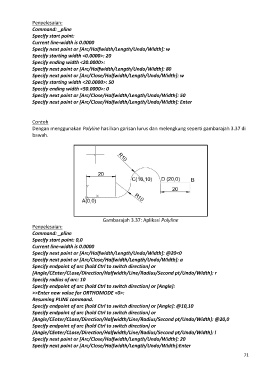
               Dengan menggunakan Polyline hasilkan garisan lurus dan melengkung seperti gambarajah 3.37 di
               bawah.


                                               Gambarajah 3.37: Aplikasi Polyline
               Penyelesaian:
               Command: _pline
               Specify start point: 0,0
               Current line-width is 0.0000
               Specify next point or [Arc/Halfwidth/Length/Undo/Width]: @20<0
               Specify next point or [Arc/Close/Halfwidth/Length/Undo/Width]: a
               Specify endpoint of arc (hold Ctrl to switch direction) or
               [Angle/CEnter/CLose/Direction/Halfwidth/Line/Radius/Second pt/Undo/Width]: r
               Specify radius of arc: 10
               Specify endpoint of arc (hold Ctrl to switch direction) or [Angle]:
               >>Enter new value for ORTHOMODE <0>:
               Resuming PLINE command.
               Specify endpoint of arc (hold Ctrl to switch direction) or [Angle]: @10,10
               Specify endpoint of arc (hold Ctrl to switch direction) or
               [Angle/CEnter/CLose/Direction/Halfwidth/Line/Radius/Second pt/Undo/Width]: @20,0
               Specify endpoint of arc (hold Ctrl to switch direction) or
               [Angle/CEnter/CLose/Direction/Halfwidth/Line/Radius/Second pt/Undo/Width]: l
               Specify next point or [Arc/Close/Halfwidth/Length/Undo/Width]: 20
               Specify next point or [Arc/Close/Halfwidth/Length/Undo/Width]:Enter
                                                                                                             71

