


Page 240 - Python Data Science Handbook
P. 240
'svg': 'Scalable Vector Graphics',
                            'svgz': 'Scalable Vector Graphics',
                            'tif': 'Tagged Image File Format',
                            'tiff': 'Tagged Image File Format'}
               Note that when saving your figure, it’s not necessary to use plt.show()  or related
               commands discussed earlier.

               Two Interfaces for the Price of One

               A potentially confusing feature of Matplotlib is its dual interfaces: a convenient
               MATLAB-style state-based interface, and a more powerful object-oriented interface.
               We’ll quickly highlight the differences between the two here.

               MATLAB-style interface

               Matplotlib was originally written as a Python alternative for MATLAB users, and
               much of its syntax reflects that fact. The MATLAB-style tools are contained in the
               pyplot (plt) interface. For example, the following code will probably look quite
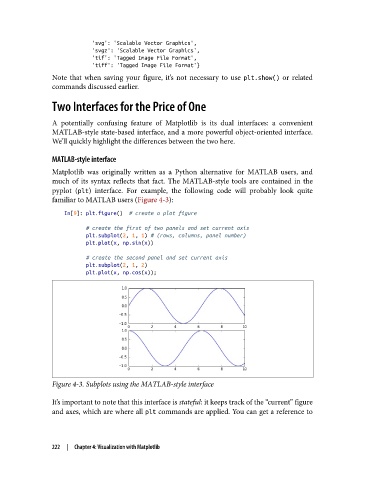
               familiar to MATLAB users (Figure 4-3):
                   In[9]: plt.figure()  # create a plot figure

                          # create the first of two panels and set current axis
                          plt.subplot(2, 1, 1) # (rows, columns, panel number)
                          plt.plot(x, np.sin(x))

                          # create the second panel and set current axis
                          plt.subplot(2, 1, 2)
                          plt.plot(x, np.cos(x));


               Figure 4-3. Subplots using the MATLAB-style interface

               It’s important to note that this interface is stateful: it keeps track of the “current” figure
               and axes, which are where all plt commands are applied. You can get a reference to


               222  |  Chapter 4: Visualization with Matplotlib

