


Page 18 - MercNET User's Guide
P. 18
Note: The estimated availability date is an estimate and may change. Contact your Account Representative for
        a more specific availability date.
              • •   Messages regarding items will also be displayed.
              • •   Select Add to Cart to add the item directly into the shopping cart
                   o  Update the quantity field to change the number of items added to the cart
              • •   Select End Model Lookup to browse the product catalog for the model number of a product

        Order Inquiry

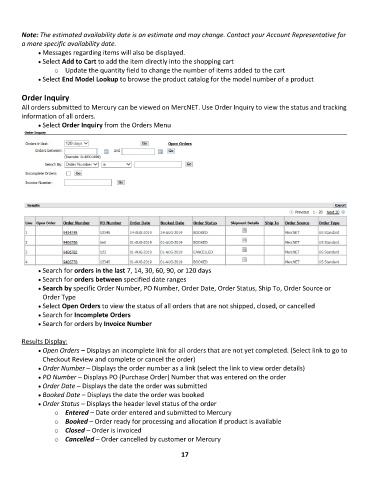
        All orders submitted to Mercury can be viewed on MercNET. Use Order Inquiry to view the status and tracking
        information of all orders.
              • •   Select Order Inquiry from the Orders Menu


              • •   Search for orders in the last 7, 14, 30, 60, 90, or 120 days
              • •   Search for orders between specified date ranges
              • •   Search by specific Order Number, PO Number, Order Date, Order Status, Ship To, Order Source or
               Order Type
              • •   Select Open Orders to view the status of all orders that are not shipped, closed, or cancelled
              • •   Search for Incomplete Orders
              • •   Search for orders by Invoice Number

        Results Display:
              • •   Open Orders – Displays an incomplete link for all orders that are not yet completed. (Select link to go to
               Checkout Review and complete or cancel the order)
              • •   Order Number – Displays the order number as a link (select the link to view order details)
              • •   PO Number – Displays PO (Purchase Order) Number that was entered on the order
              • •   Order Date – Displays the date the order was submitted
              • •   Booked Date – Displays the date the order was booked
              • •   Order Status – Displays the header level status of the order
                   o  Entered – Date order entered and submitted to Mercury
                   o  Booked – Order ready for processing and allocation if product is available
                   o  Closed – Order is invoiced
                   o  Cancelled – Order cancelled by customer or Mercury

                                                             17

