


Page 23 - MercNET User's Guide
P. 23
• •   Status – Displays the status of the return
                   o  Booked – Return Request has been received by Mercury
                   o  Canceled – Return Request has been canceled
              • •   Order Number – Displays the original order number
              • •   Price – Displays the price of the item
              • •   Approval Status – Displays the approval status of the return
                   o  Pending Approval – Return request has been received by Mercury and is awaiting review
                   o  Rejected – Return request has been rejected by Mercury
                   o  Approved – Awaiting Return – Return request has been approved by Mercury

        Create a Return
        Return Requests can be created and submitted on MercNET.
              • Select Returns from the Orders menu
               1.  Select the Create Return button
               2.  Select either Order Number or Part Number from the drop-down menu and enter appropriate
                   information in the search field
               3.  Select Go
               4.  Select the Order Number from the search results list
               5.  Select the Return Items button


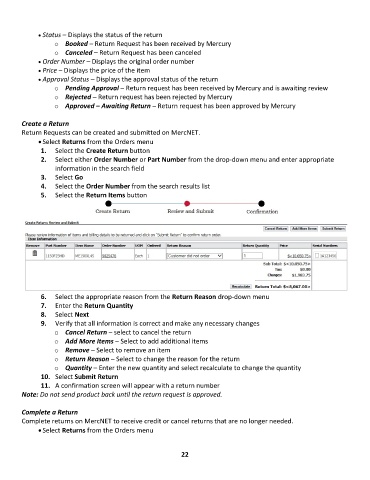
               6.  Select the appropriate reason from the Return Reason drop-down menu
               7.  Enter the Return Quantity
               8.  Select Next
               9.  Verify that all information is correct and make any necessary changes
                   o  Cancel Return – select to cancel the return
                   o  Add More Items – Select to add additional items
                   o  Remove – Select to remove an item
                   o  Return Reason – Select to change the reason for the return
                   o  Quantity – Enter the new quantity and select recalculate to change the quantity
               10.  Select Submit Return
               11.  A confirmation screen will appear with a return number
        Note: Do not send product back until the return request is approved.

        Complete a Return
        Complete returns on MercNET to receive credit or cancel returns that are no longer needed.
              • Select Returns from the Orders menu


                                                             22

