


Page 31 - MercNET User's Guide
P. 31
3.  Enter the Owner’s Name
        Note: The Select Customer button allows you to autofill the owner’s information for a customer that you have
        previously entered registrations for.
               4.  Enter the Owner’s Address
               5.  Enter the Owner’s E-mail Address
        Note: If an e-mail address is not available, select ok to the disclaimer “Customer declines or e-mail information
        is not available” upon submission.
               6.  Enter the Sale Date (Delivery Date)
               7.  Enter the Certificate Number (optional)
               8.  Select a Billing Option (optional)
        Note: Certificate Number and Billing Option are only required if applying a Dealer’s Choice certificate to the
        registration.
               9.  Select the Number of Engines
        Note: If a number greater than 1 is selected, an additional section will appear at the bottom of the screen to
        register additional engines to the same owner and boat.
               10.  Select Use
               11.  Select the Primary Water Type
               12.  Select Repower, Yes or No (optional)
               13.  Enter the Hull ID (optional)
        Note: If the HULL ID is not available, select ok to the disclaimer “Customer declines or Hull ID is not available”
        upon submission.
               14.  Select the Boat Type
               15.  Enter the Boat Length (optional)
               16.  Select the Hull Material
               17.  Enter the Boat Brand (optional)
               18.  Enter the Boat Model (optional)
               19.  Enter the Engine Hours (optional)
               20.  Select Submit


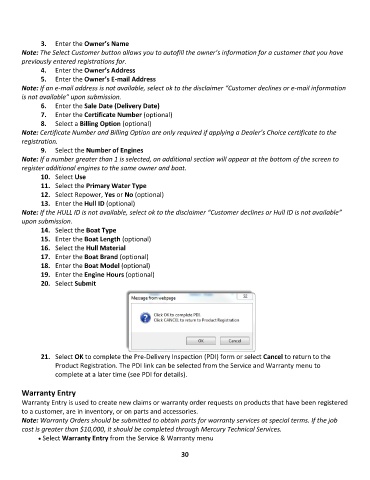
               21.  Select OK to complete the Pre-Delivery Inspection (PDI) form or select Cancel to return to the
                   Product Registration. The PDI link can be selected from the Service and Warranty menu to
                   complete at a later time (see PDI for details).

        Warranty Entry
        Warranty Entry is used to create new claims or warranty order requests on products that have been registered
        to a customer, are in inventory, or on parts and accessories.
        Note: Warranty Orders should be submitted to obtain parts for warranty services at special terms. If the job
        cost is greater than $10,000, it should be completed through Mercury Technical Services.
              • •   Select Warranty Entry from the Service & Warranty menu

                                                             30

