


Page 28 - MercNET User's Guide
P. 28
Purchase Report
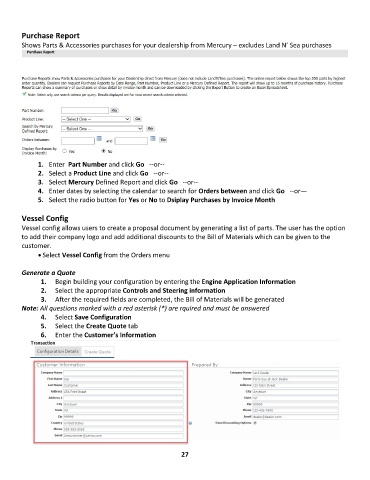
        Shows Parts & Accessories purchases for your dealership from Mercury – excludes Land N’ Sea purchases


              1.  Enter  Part Number and click Go   --or--
              2.  Select a Product Line and click Go   --or--
              3.  Select Mercury Defined Report and click Go   --or--
              4.  Enter dates by selecting the calendar to search for Orders between and click Go   --or—
              5.  Select the radio button for Yes or No to Dsiplay Purchases by Invoice Month

        Vessel Config
        Vessel config allows users to create a proposal document by generating a list of parts. The user has the option
        to add their company logo and add additional discounts to the Bill of Materials which can be given to the
        customer.
              • Select Vessel Config from the Orders menu

        Generate a Quote
               1.  Begin building your configuration by entering the Engine Application Information
               2.  Select the appropriate Controls and Steering information
               3.  After the required fields are completed, the Bill of Materials will be generated
        Note: All questions marked with a red asterisk (*) are rquired and must be answered
               4.  Select Save Configuration
               5.  Select the Create Quote tab
               6.  Enter the Customer’s Information


                                                             27

