


Page 29 - MercNET User's Guide
P. 29
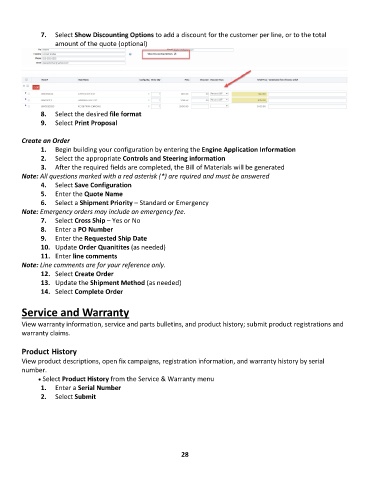
7.  Select Show Discounting Options to add a discount for the customer per line, or to the total
                   amount of the quote (optional)


               8.  Select the desired file format
               9.  Select Print Proposal

        Create an Order
               1.  Begin building your configuration by entering the Engine Application Information
               2.  Select the appropriate Controls and Steering information
               3.  After the required fields are completed, the Bill of Materials will be generated
        Note: All questions marked with a red asterisk (*) are rquired and must be answered
               4.  Select Save Configuration
               5.  Enter the Quote Name
               6.  Select a Shipment Priority – Standard or Emergency
        Note: Emergency orders may include an emergency fee.
               7.  Select Cross Ship – Yes or No
               8.  Enter a PO Number
               9.  Enter the Requested Ship Date
               10.  Update Order Quanitites (as needed)
               11.  Enter line comments
        Note: Line comments are for your reference only.
               12.  Select Create Order
               13.  Update the Shipment Method (as needed)
               14.  Select Complete Order

        Service and Warranty

        View warranty information, service and parts bulletins, and product history; submit product registrations and
        warranty claims.

        Product History
        View product descriptions, open fix campaigns, registration information, and warranty history by serial
        number.
              • •   Select Product History from the Service & Warranty menu
               1.  Enter a Serial Number
               2.  Select Submit


                                                             28

