


Page 19 - Computing book 6
P. 19
Analysing Data                                                                       Class 6


               How to Copy or Move a Worksheet:

               If you need to duplicate the content of one worksheet to another, Excel allows you to copy an
               existing worksheet.
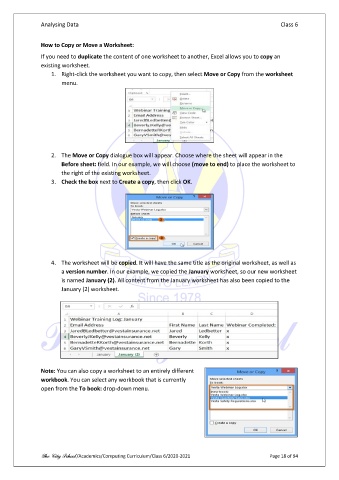
                   1.  Right-click the worksheet you want to copy, then select Move or Copy from the worksheet
                       menu.


                   2.  The Move or Copy dialogue box will appear. Choose where the sheet will appear in the
                       Before sheet: field. In our example, we will choose (move to end) to place the worksheet to
                       the right of the existing worksheet.
                   3.  Check the box next to Create a copy, then click OK.


                   4.  The worksheet will be copied. It will have the same title as the original worksheet, as well as
                       a version number. In our example, we copied the January worksheet, so our new worksheet
                       is named January (2). All content from the January worksheet has also been copied to the
                       January (2) worksheet.


               Note: You can also copy a worksheet to an entirely different
               workbook. You can select any workbook that is currently
               open from the To book: drop-down menu.


               The City School /Academics/Computing Curriculum/Class 6/2020-2021                Page 18 of 94

