


Page 43 - Computing Book 4
P. 43
Spreadsheet Formatting                                                               Class 4


               Change Horizontal Text Alignment:

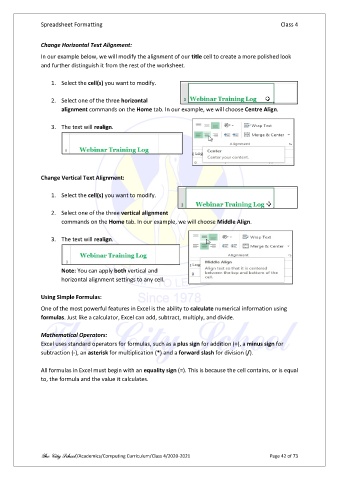
               In our example below, we will modify the alignment of our title cell to create a more polished look
               and further distinguish it from the rest of the worksheet.

                   1.  Select the cell(s) you want to modify.

                   2.  Select one of the three horizontal
                       alignment commands on the Home tab. In our example, we will choose Centre Align.

                   3.  The text will realign.


               Change Vertical Text Alignment:

                   1.  Select the cell(s) you want to modify.

                   2.  Select one of the three vertical alignment
                       commands on the Home tab. In our example, we will choose Middle Align.

                   3.  The text will realign.


                       Note: You can apply both vertical and
                       horizontal alignment settings to any cell.

               Using Simple Formulas:

               One of the most powerful features in Excel is the ability to calculate numerical information using
               formulas. Just like a calculator, Excel can add, subtract, multiply, and divide.

               Mathematical Operators:
               Excel uses standard operators for formulas, such as a plus sign for addition (+), a minus sign for
               subtraction (-), an asterisk for multiplication (*) and a forward slash for division (/).

               All formulas in Excel must begin with an equality sign (=). This is because the cell contains, or is equal
               to, the formula and the value it calculates.


               The City School /Academics/Computing Curriculum/Class 4/2020-2021                Page 42 of 73

