


Page 41 - Computing Book 4
P. 41
Spreadsheet Formatting                                                               Class 4


                   3.  The new column will appear to the left of the selected column.


                       Note: When inserting rows and columns, make sure you select the entire row or column by
                       clicking the heading. If you select only a cell in the row or column, the Insert command will
                       only insert a new cell.

               Wrapping Text and Merging Cells:
               Whenever you have too much cell content to be displayed in a single cell, you may decide to wrap
               the text or merge the cell rather than resize a column. Wrapping the text will automatically modify a
               cell's row height, allowing cell contents to be displayed on multiple lines. Merging allows you to
               combine a cell with adjacent empty cells to create one large cell.

               To Wrap Text in a Cell:
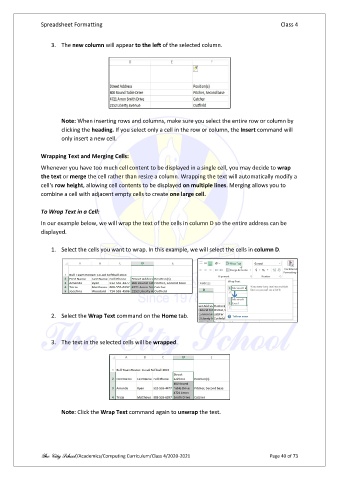
               In our example below, we will wrap the text of the cells in column D so the entire address can be
               displayed.

                   1.  Select the cells you want to wrap. In this example, we will select the cells in column D.


                   2.  Select the Wrap Text command on the Home tab.


                   3.  The text in the selected cells will be wrapped.


                       Note: Click the Wrap Text command again to unwrap the text.


               The City School /Academics/Computing Curriculum/Class 4/2020-2021                Page 40 of 73

