


Page 44 - Computing Book 4
P. 44
Spreadsheet Formatting                                                               Class 4


               Understanding Cell Reference:

               While you can create simple formulas in Excel
               manually (for example, =2+2 or =5*5), most of
               the time you will use cell addresses to create a
               formula. This is known as making a cell
               reference.

               Using cell references will ensure that your
               formulas are always accurate because you can
               change the value of referenced cells without
               having to rewrite the formula.

               By combining a mathematical operator with cell references, you can create a variety of simple
               formulas in Excel.

               Sum Function:
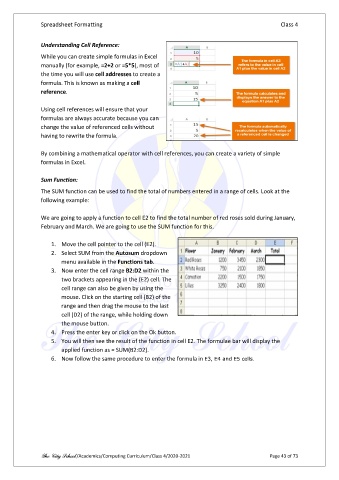
               The SUM function can be used to find the total of numbers entered in a range of cells. Look at the
               following example:

               We are going to apply a function to cell E2 to find the total number of red roses sold during January,
               February and March. We are going to use the SUM function for this.

                   1.  Move the cell pointer to the cell (E2).
                   2.  Select SUM from the Autosum dropdown
                       menu available in the Functions tab.
                   3.  Now enter the cell range B2:D2 within the
                       two brackets appearing in the (E2) cell. The
                       cell range can also be given by using the
                       mouse. Click on the starting cell (B2) of the
                       range and then drag the mouse to the last
                       cell (D2) of the range, while holding down
                       the mouse button.
                   4.  Press the enter key or click on the Ok button.
                   5.  You will then see the result of the function in cell E2. The formulae bar will display the
                       applied function as = SUM(B2:D2).
                   6.  Now follow the same procedure to enter the formula in E3, E4 and E5 cells.


               The City School /Academics/Computing Curriculum/Class 4/2020-2021                Page 43 of 73

