


Page 120 - Learn To Program With Scratch
P. 120
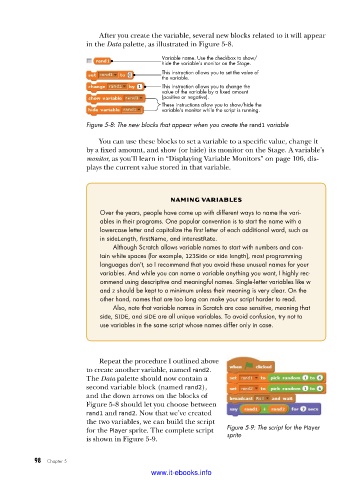
After you create the variable, several new blocks related to it will appear
                         in the Data palette, as illustrated in Figure 5-8.

                                              Variable name. Use the checkbox to show/
                                              hide the variable’s monitor on the Stage.
                                              This instruction allows you to set the value of
                                              the variable.
                                              This instruction allows you to change the
                                              value of the variable by a fixed amount
                                              (positive or negative).
                                              These instructions allow you to show/hide the
                                              variable’s monitor while the script is running.
                         Figure 5-8: The new blocks that appear when you create the rand1 variable

                             You can use these blocks to set a variable to a specific value, change it
                         by a fixed amount, and show (or hide) its monitor on the Stage. A variable’s
                         monitor, as you’ll learn in “Displaying Variable Monitors” on page 106, dis-
                         plays the current value stored in that variable.


                                                naming VariaBLeS
                             Over the years, people have come up with different ways to name the vari-
                             ables in their programs . One popular convention is to start the name with a
                             lowercase letter and capitalize the first letter of each additional word, such as
                             in sideLength, firstName, and interestRate .
                                Although Scratch allows variable names to start with numbers and con-
                             tain white spaces (for example, 123Side or side length), most programming
                             languages don’t, so I recommend that you avoid these unusual names for your
                             variables . And while you can name a variable anything you want, I highly rec-
                             ommend using descriptive and meaningful names . Single-letter variables like w
                             and z should be kept to a minimum unless their meaning is very clear . On the
                             other hand, names that are too long can make your script harder to read .
                                Also, note that variable names in Scratch are case sensitive, meaning that
                             side, SIDE, and siDE are all unique variables . To avoid confusion, try not to
                             use variables in the same script whose names differ only in case .


                             Repeat the procedure I outlined above
                         to create another variable, named rand2.
                         The Data palette should now contain a
                         second variable block (named rand2),
                         and the down arrows on the blocks of
                         Figure 5-8 should let you choose between
                         rand1 and rand2. Now that we’ve created
                         the two variables, we can build the script
                         for the Player sprite. The complete script   Figure 5-9: The script for the Player
                         is shown in Figure 5-9.                sprite


           98   Chapter 5
                                           www.it-ebooks.info

