


Page 31 - Learn To Program With Scratch
P. 31
You can even copy a stack of blocks from one sprite to another. Just
                          drag the stack from the Scripts Area of the source sprite to the thumbnail
                          of the destination sprite in the Sprite List.


                                                    try it out 1-6

                            Add another sprite to your project . Drag the script from the Cat sprite and drop it
                            over the thumbnail of the new sprite . Your mouse arrow must be on top of the new
                            sprite’s thumbnail for the drop to succeed . Check the Scripts tab of the new sprite
                            to make sure that it has an identical copy of the script .


                          Costumes Tab

                          You can change what a sprite looks like by changing its costume, which is
                          just an image. The Costumes tab contains everything you need to organize
                          your sprite’s costumes; you could think of it like a clothes closet. The closet
                          can have many costumes, but a sprite can wear only one at a time.
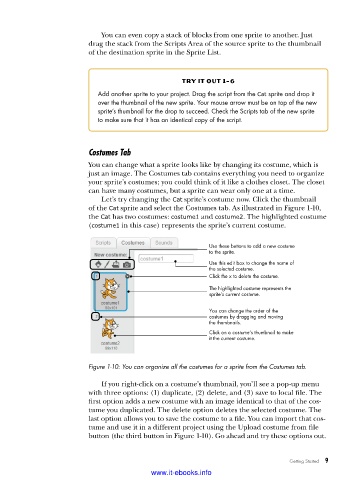
                             Let’s try changing the Cat sprite’s costume now. Click the thumbnail
                          of the Cat sprite and select the Costumes tab. As illustrated in Figure 1-10,
                          the Cat has two costumes: costume1 and costume2. The highlighted costume
                          (costume1 in this case) represents the sprite’s current costume.


                                                           Use these buttons to add a new costume
                                                           to the sprite.
                                                           Use this edit box to change the name of
                                                           the selected costume.
                                                           Click the x to delete the costume.
                                                           The highlighted costume represents the
                                                           sprite’s current costume.

                                                           You can change the order of the
                                                           costumes by dragging and moving
                                                           the thumbnails.
                                                           Click on a costume’s thumbnail to make
                                                           it the current costume.


                          Figure 1-10: You can organize all the costumes for a sprite from the Costumes tab .

                             If you right-click on a costume’s thumbnail, you’ll see a pop-up menu
                          with three options: (1) duplicate, (2) delete, and (3) save to local file. The
                          first option adds a new costume with an image identical to that of the cos-
                          tume you duplicated. The delete option deletes the selected costume. The
                          last option allows you to save the costume to a file. You can import that cos-
                          tume and use it in a different project using the Upload costume from file
                          button (the third button in Figure 1-10). Go ahead and try these options out.


                                                                                 Getting Started   9

                                           www.it-ebooks.info

