


Page 33 - Learn To Program With Scratch
P. 33
Backdrops Tab
When you select the thumbnail of the Stage in the Sprite List, the name
of the middle tab changes from Costumes to Backdrops. Use this tab to orga-
nize the Stage’s background images, which you can change with your scripts.
For example, if you’re creating a game, you might show one backdrop with
instructions to begin and then switch to another when the user starts the
game. The Backdrops tab is identical to the Costumes tab.
try it out 1-9
Click the Choose backdrop from library button below the thumbnail of the Stage in
the Sprite List . Select the xy-grid backdrop from the window that appears and click
OK . Scratch will add the xy-grid to your project and make it the default backdrop .
(The xy-grid shows a 2-D Cartesian plane, which is useful when you’re working
with the Motion command blocks .) Repeat these steps and select any other back-
drop that you like .
Sprite Info
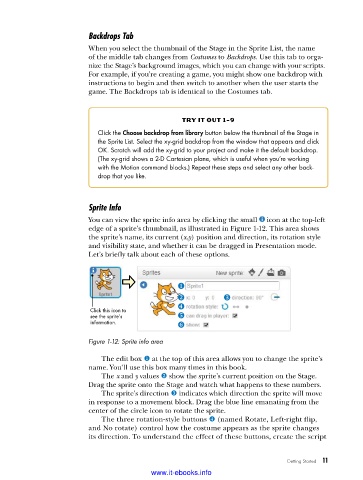
You can view the sprite info area by clicking the small icon at the top-left
edge of a sprite’s thumbnail, as illustrated in Figure 1-12. This area shows
the sprite’s name, its current (x,y) position and direction, its rotation style
and visibility state, and whether it can be dragged in Presentation mode.
Let’s briefly talk about each of these options.
Click this icon to
see the sprite’s
information.
Figure 1-12: Sprite info area
The edit box u at the top of this area allows you to change the sprite’s
name. You’ll use this box many times in this book.
The x and y values v show the sprite’s current position on the Stage.
Drag the sprite onto the Stage and watch what happens to these numbers.
The sprite’s direction w indicates which direction the sprite will move
in response to a movement block. Drag the blue line emanating from the
center of the circle icon to rotate the sprite.
The three rotation-style buttons x (named Rotate, Left-right flip,
and No rotate) control how the costume appears as the sprite changes
its direction. To understand the effect of these buttons, create the script
Getting Started 11
www.it-ebooks.info

