


Page 32 - Learn To Program With Scratch
P. 32
try it out 1-7
Click the first button above the cat’s image in Figure 1-10 to choose a new cos-
tume from Scratch’s library . Then select any image you like from the window that
appears . Apply some of the tips in Figure 1-10 to become more familiar with the
costume options .
Sounds Tab
Sprites can also play sounds, which liven up your programs. You can, for
example, give a sprite different sounds to use when it’s happy or sad. If your
game contains a sprite that looks like a missile, you could make the missile
generate different sounds when it hits or misses a target.
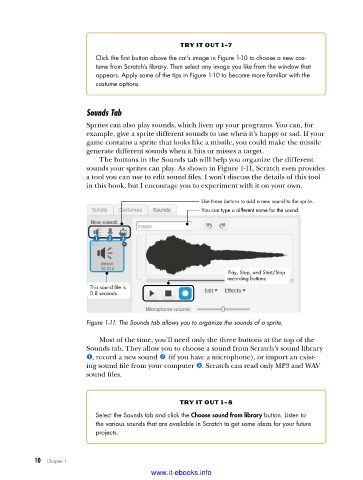
The buttons in the Sounds tab will help you organize the different
sounds your sprites can play. As shown in Figure 1-11, Scratch even provides
a tool you can use to edit sound files. I won’t discuss the details of this tool
in this book, but I encourage you to experiment with it on your own.
Use these buttons to add a new sound to the sprite.
You can type a different name for the sound.
Play, Stop, and Start/Stop
recording buttons.
This sound file is
0.8 seconds.
Figure 1-11: The Sounds tab allows you to organize the sounds of a sprite .
Most of the time, you’ll need only the three buttons at the top of the
Sounds tab. They allow you to choose a sound from Scratch’s sound library
u, record a new sound v (if you have a microphone), or import an exist-
ing sound file from your computer w. Scratch can read only MP3 and WAV
sound files.
try it out 1-8
Select the Sounds tab and click the Choose sound from library button . Listen to
the various sounds that are available in Scratch to get some ideas for your future
projects .
10 Chapter 1
www.it-ebooks.info

