


Page 28 - Python Data Science Handbook
P. 28
In [1]:
                   (reverse-i-search)`sqa': square??
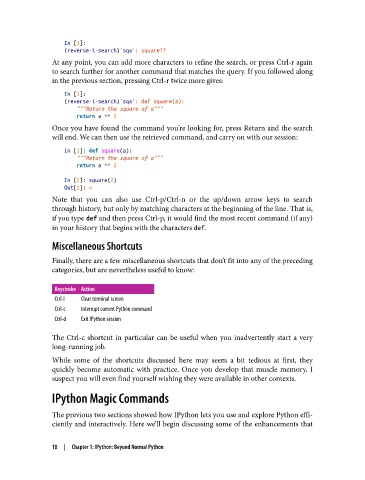
               At any point, you can add more characters to refine the search, or press Ctrl-r again
               to search further for another command that matches the query. If you followed along
               in the previous section, pressing Ctrl-r twice more gives:

                   In [1]:
                   (reverse-i-search)`sqa': def square(a):
                       """Return the square of a"""
                       return a ** 2
               Once you have found the command you’re looking for, press Return and the search
               will end. We can then use the retrieved command, and carry on with our session:
                   In [1]: def square(a):
                       """Return the square of a"""
                       return a ** 2
                   In [2]: square(2)
                   Out[2]: 4
               Note that you can also use Ctrl-p/Ctrl-n or the up/down arrow keys to search
               through history, but only by matching characters at the beginning of the line. That is,
               if you type def and then press Ctrl-p, it would find the most recent command (if any)
               in your history that begins with the characters def.

               Miscellaneous Shortcuts

               Finally, there are a few miscellaneous shortcuts that don’t fit into any of the preceding
               categories, but are nevertheless useful to know:

                Keystroke Action
                Ctrl-l  Clear terminal screen
                Ctrl-c  Interrupt current Python command
                Ctrl-d  Exit IPython session

               The Ctrl-c shortcut in particular can be useful when you inadvertently start a very
               long-running job.
               While some of the shortcuts discussed here may seem a bit tedious at first, they
               quickly become automatic with practice. Once you develop that muscle memory, I
               suspect you will even find yourself wishing they were available in other contexts.

               IPython Magic Commands

               The previous two sections showed how IPython lets you use and explore Python effi‐
               ciently and interactively. Here we’ll begin discussing some of the enhancements that


               10  |  Chapter 1: IPython: Beyond Normal Python

