


Page 21 - MercNET User's Guide
P. 21
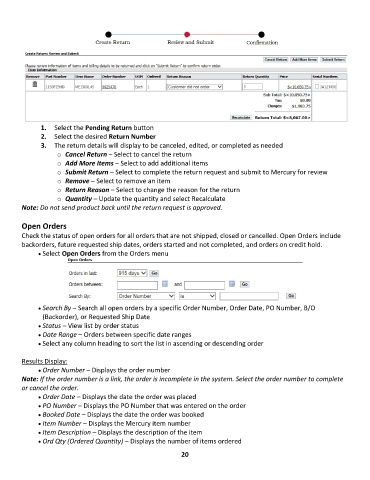
1.  Select the Pending Return button
               2.  Select the desired Return Number
               3.  The return details will display to be canceled, edited, or completed as needed
                    o  Cancel Return – Select to cancel the return
                    o  Add More Items – Select to add additional items
                    o  Submit Return – Select to complete the return request and submit to Mercury for review
                    o  Remove – Select to remove an item
                    o  Return Reason – Select to change the reason for the return
                    o  Quantity – Update the quantity and select Recalculate
        Note: Do not send product back until the return request is approved.

        Open Orders
        Check the status of open orders for all orders that are not shipped, closed or cancelled. Open Orders include
        backorders, future requested ship dates, orders started and not completed, and orders on credit hold.
              • •   Select Open Orders from the Orders menu


              • •   Search By – Search all open orders by a specific Order Number, Order Date, PO Number, B/O
               (Backorder), or Requested Ship Date
              • •   Status – View list by order status
              • •   Date Range – Orders between specific date ranges
              • •   Select any column heading to sort the list in ascending or descending order

        Results Display:
              • •   Order Number – Displays the order number
        Note: If the order number is a link, the order is incomplete in the system. Select the order number to complete
        or cancel the order.
              • •   Order Date – Displays the date the order was placed
              • •   PO Number – Displays the PO Number that was entered on the order
              • •   Booked Date – Displays the date the order was booked
              • •   Item Number – Displays the Mercury item number
              • •   Item Description – Displays the description of the item
              • •   Ord Qty (Ordered Quantity) – Displays the number of items ordered

                                                             20

