


Page 23 - MercNET User's Guide
P. 23
The quantity and dealer information are displayed. Questions regarding these parts should be directed to the
        selling dealer.

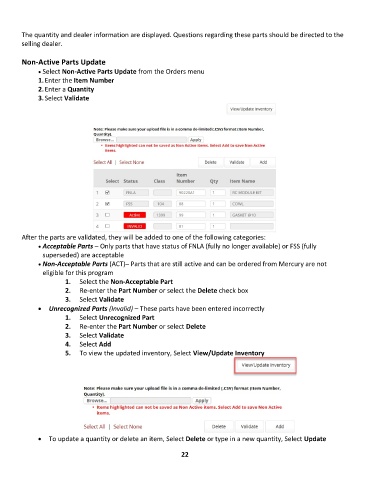
        Non-Active Parts Update
              • •   Select Non-Active Parts Update from the Orders menu
              1. Enter the Item Number
              2. Enter a Quantity
              3. Select Validate


        After the parts are validated, they will be added to one of the following categories:
              • •   Acceptable Parts – Only parts that have status of FNLA (fully no longer available) or FSS (fully
               superseded) are acceptable
              • •   Non-Acceptable Parts (ACT)– Parts that are still active and can be ordered from Mercury are not
               eligible for this program
                       1.  Select the Non-Acceptable Part
                       2.  Re-enter the Part Number or select the Delete check box
                       3.  Select Validate
              •  Unrecognized Parts (Invalid) – These parts have been entered incorrectly
                       1.  Select Unrecognized Part
                       2.  Re-enter the Part Number or select Delete
                       3.  Select Validate
                       4.  Select Add
                       5.  To view the updated inventory, Select View/Update Inventory


              •  To update a quantity or delete an item, Select Delete or type in a new quantity, Select Update

                                                             22

