


Page 28 - MercNET User's Guide
P. 28
19.  Enter the Engine Hours (optional)
               20.  Select Submit


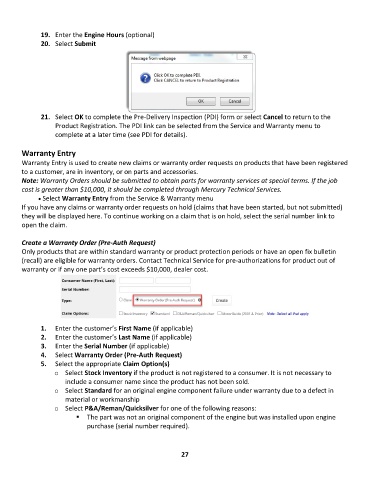
               21.  Select OK to complete the Pre-Delivery Inspection (PDI) form or select Cancel to return to the
                   Product Registration. The PDI link can be selected from the Service and Warranty menu to
                   complete at a later time (see PDI for details).

        Warranty Entry
        Warranty Entry is used to create new claims or warranty order requests on products that have been registered
        to a customer, are in inventory, or on parts and accessories.
        Note: Warranty Orders should be submitted to obtain parts for warranty services at special terms. If the job
        cost is greater than $10,000, it should be completed through Mercury Technical Services.
              • •   Select Warranty Entry from the Service & Warranty menu
        If you have any claims or warranty order requests on hold (claims that have been started, but not submitted)
        they will be displayed here. To continue working on a claim that is on hold, select the serial number link to
        open the claim.

        Create a Warranty Order (Pre-Auth Request)
        Only products that are within standard warranty or product protection periods or have an open fix bulletin
        (recall) are eligible for warranty orders. Contact Technical Service for pre-authorizations for product out of
        warranty or if any one part’s cost exceeds $10,000, dealer cost.


               1.  Enter the customer’s First Name (if applicable)
               2.  Enter the customer’s Last Name (if applicable)
               3.  Enter the Serial Number (if applicable)
               4.  Select Warranty Order (Pre-Auth Request)
               5.  Select the appropriate Claim Option(s)
                   o  Select Stock Inventory if the product is not registered to a consumer. It is not necessary to
                       include a consumer name since the product has not been sold.
                   o  Select Standard for an original engine component failure under warranty due to a defect in
                       material or workmanship
                   o  Select P&A/Reman/Quicksilver for one of the following reasons:
                          ▪  The part was not an original component of the engine but was installed upon engine
                              purchase (serial number required).


                                                             27

