


Page 30 - MercNET User's Guide
P. 30
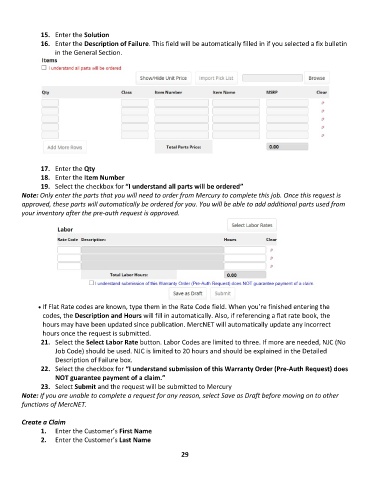
15.  Enter the Solution
               16.  Enter the Description of Failure. This field will be automatically filled in if you selected a fix bulletin
                   in the General Section.


               17.  Enter the Qty
               18.  Enter the Item Number
               19.  Select the checkbox for “I understand all parts will be ordered”
        Note: Only enter the parts that you will need to order from Mercury to complete this job. Once this request is
        approved, these parts will automatically be ordered for you. You will be able to add additional parts used from
        your inventory after the pre-auth request is approved.


              • •   If Flat Rate codes are known, type them in the Rate Code field. When you’re finished entering the
               codes, the Description and Hours will fill in automatically. Also, if referencing a flat rate book, the
               hours may have been updated since publication. MercNET will automatically update any incorrect
               hours once the request is submitted.
               21.  Select the Select Labor Rate button. Labor Codes are limited to three. If more are needed, NJC (No
                   Job Code) should be used. NJC is limited to 20 hours and should be explained in the Detailed
                   Description of Failure box.
               22.  Select the checkbox for “I understand submission of this Warranty Order (Pre-Auth Request) does
                   NOT guarantee payment of a claim.”
               23.  Select Submit and the request will be submitted to Mercury
        Note: If you are unable to complete a request for any reason, select Save as Draft before moving on to other
        functions of MercNET.

        Create a Claim
               1.  Enter the Customer’s First Name
               2.  Enter the Customer’s Last Name

                                                             29

