


Page 32 - MercNET User's Guide
P. 32
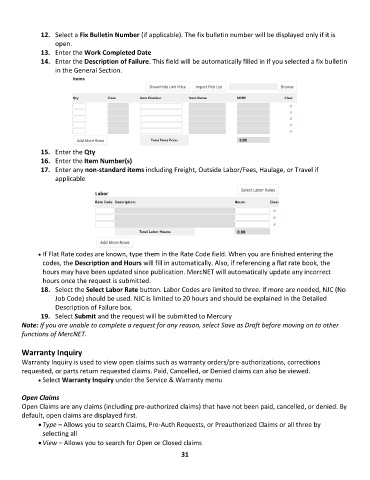
12.  Select a Fix Bulletin Number (if applicable). The fix bulletin number will be displayed only if it is
                   open.
               13.  Enter the Work Completed Date
               14.  Enter the Description of Failure. This field will be automatically filled in if you selected a fix bulletin
                   in the General Section.


               15.  Enter the Qty
               16.  Enter the Item Number(s)
               17.  Enter any non-standard items including Freight, Outside Labor/Fees, Haulage, or Travel if
                   applicable


              • •   If Flat Rate codes are known, type them in the Rate Code field. When you are finished entering the
               codes, the Description and Hours will fill in automatically. Also, if referencing a flat rate book, the
               hours may have been updated since publication. MercNET will automatically update any incorrect
               hours once the request is submitted.
               18.  Select the Select Labor Rate button. Labor Codes are limited to three. If more are needed, NJC (No
                   Job Code) should be used. NJC is limited to 20 hours and should be explained in the Detailed
                   Description of Failure box.
               19.  Select Submit and the request will be submitted to Mercury
        Note: If you are unable to complete a request for any reason, select Save as Draft before moving on to other
        functions of MercNET.

        Warranty Inquiry
        Warranty Inquiry is used to view open claims such as warranty orders/pre-authorizations, corrections
        requested, or parts return requested claims. Paid, Cancelled, or Denied claims can also be viewed.
              • •   Select Warranty Inquiry under the Service & Warranty menu

        Open Claims
        Open Claims are any claims (including pre-authorized claims) that have not been paid, cancelled, or denied. By
        default, open claims are displayed first.
              • Type – Allows you to search Claims, Pre-Auth Requests, or Preauthorized Claims or all three by
               selecting all
              • View – Allows you to search for Open or Closed claims
                                                             31

