


Page 40 - Computing Book 4
P. 40
Spreadsheet Formatting                                                               Class 4


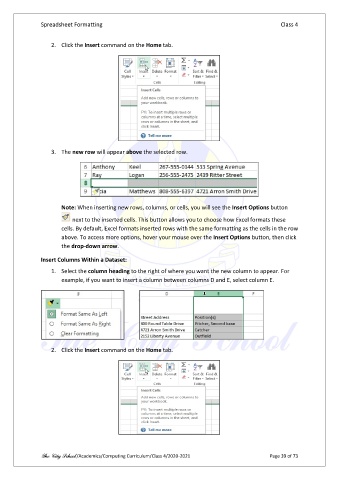
                   2.  Click the Insert command on the Home tab.


                   3.  The new row will appear above the selected row.


                       Note: When inserting new rows, columns, or cells, you will see the Insert Options button

                           next to the inserted cells. This button allows you to choose how Excel formats these
                       cells. By default, Excel formats inserted rows with the same formatting as the cells in the row
                       above. To access more options, hover your mouse over the Insert Options button, then click
                       the drop-down arrow.

               Insert Columns Within a Dataset:

                   1.  Select the column heading to the right of where you want the new column to appear. For
                       example, if you want to insert a column between columns D and E, select column E.


                   2.  Click the Insert command on the Home tab.


               The City School /Academics/Computing Curriculum/Class 4/2020-2021                Page 39 of 73

