


Page 32 - Computing E-Book Grade 3
P. 32
The City School  2021-2022


           Creating a Numbered List in Word


           When you need to organize text into a numbered list, Word offers several numbering
           options. You can format your list with numbers, letters, or Roman numerals.

           1.  Select the text you want to format as a list.

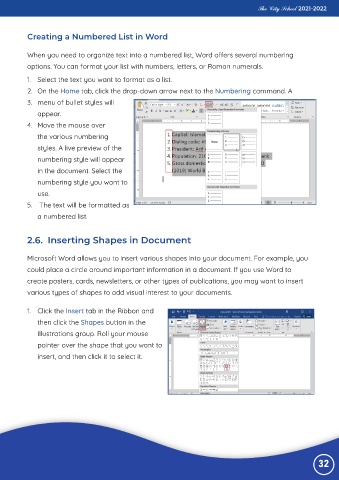
           2.  On the Home tab, click the drop-down arrow next to the Numbering command. A
           3.  menu of bullet styles will

              appear.
           4.  Move the mouse over

              the various numbering
              styles. A live preview of the

              numbering style will appear
              in the document. Select the

              numbering style you want to
              use.

           5.   The text will be formatted as
              a numbered list.


           2.6.  Inserting Shapes in Document


           Microsoft Word allows you to insert various shapes into your document. For example, you

           could place a circle around important information in a document. If you use Word to
           create posters, cards, newsletters, or other types of publications, you may want to insert

           various types of shapes to add visual interest to your documents.


           1.  Click the Insert tab in the Ribbon and

              then click the Shapes button in the
              Illustrations group. Roll your mouse
              pointer over the shape that you want to

              insert, and then click it to select it.


                                                                                                                 32

